

How to Use Wireless Lavalier Microphone for Android Step by Step Guide
Understanding how to use wireless lavalier microphone for Android is essential for creators who want clear and professional sound when recording videos or doing live streaming. Compared with built in phone microphones a wireless lavalier microphone provides cleaner voice pickup better noise control and more flexibility. This guide explains the full process in a clear and structured way so you can start recording with confidence.
What is a wireless lavalier microphone for Android
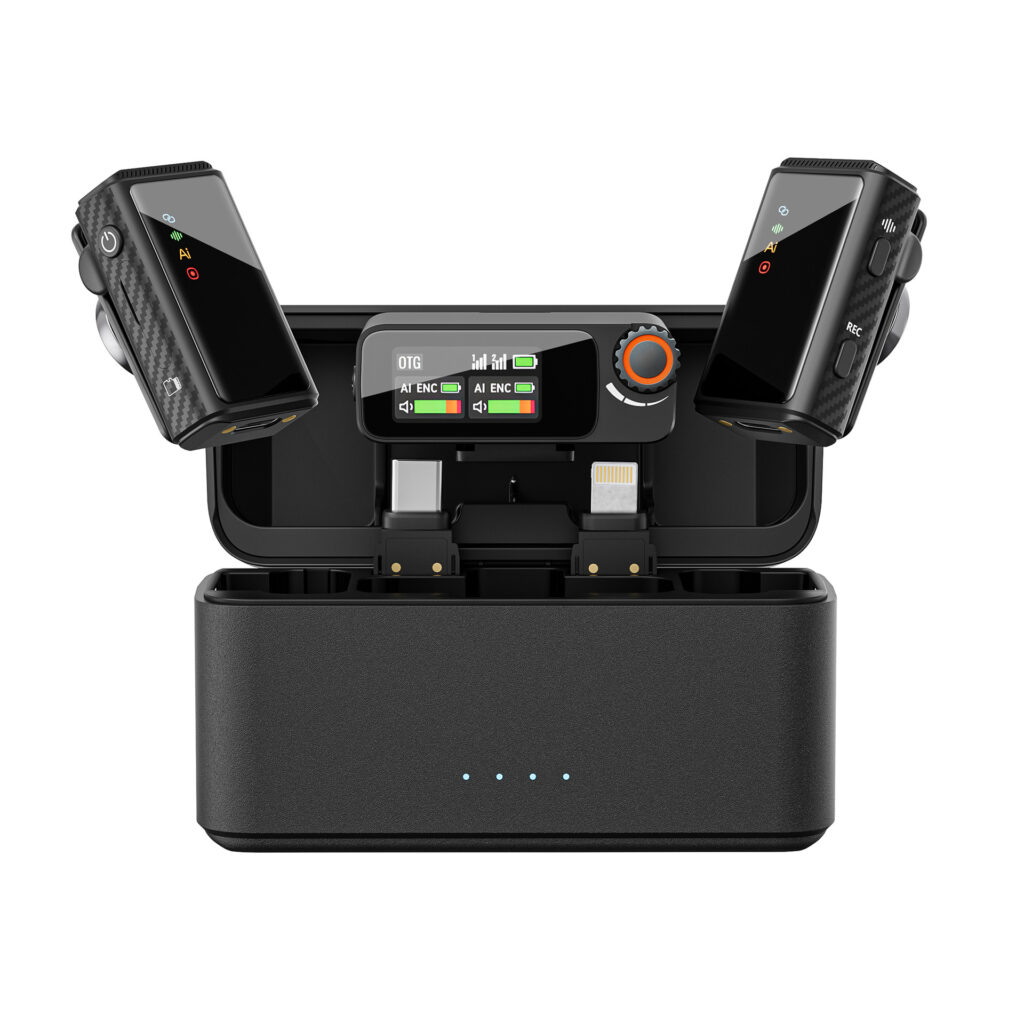
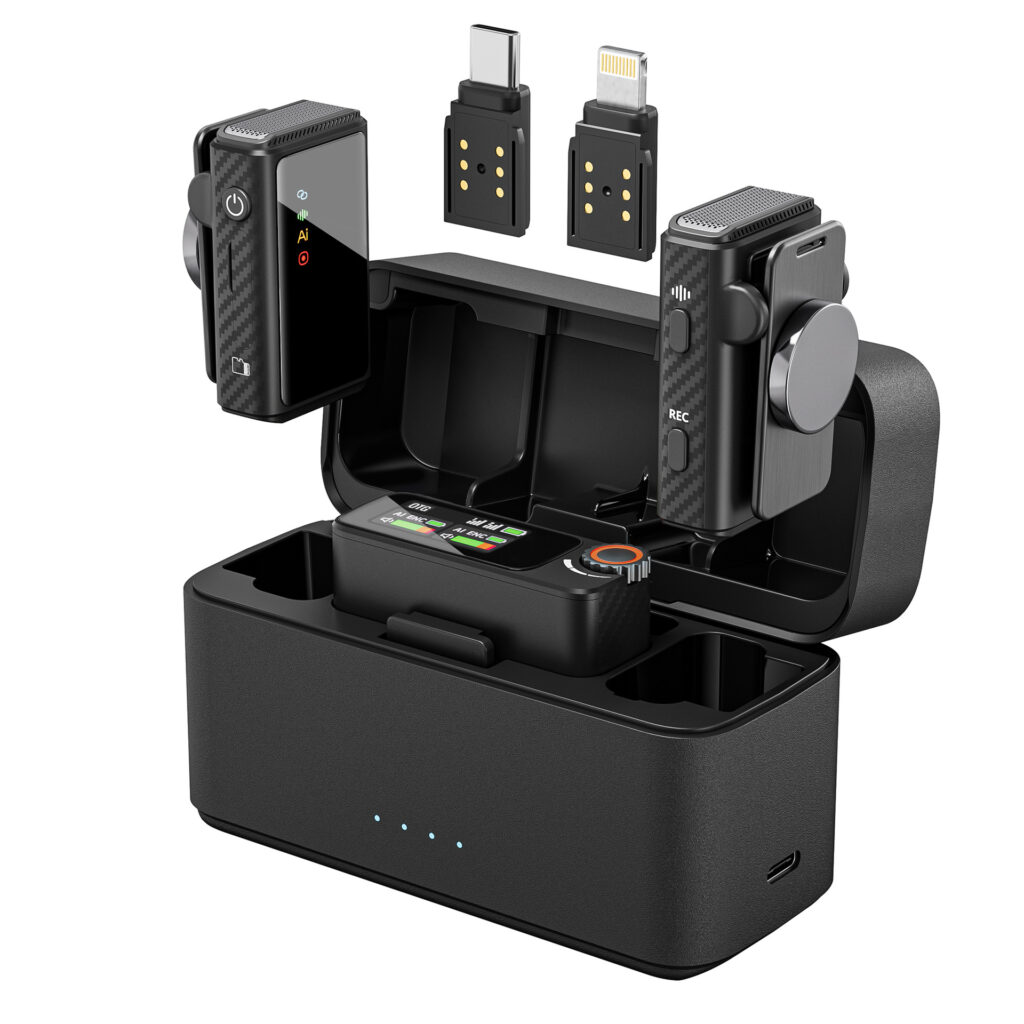
A wireless lavalier microphone is a compact clip on microphone that connects wirelessly to a receiver plugged into your Android phone. The microphone is worn on clothing while audio is transmitted in real time to your phone making it ideal for hands free recording and mobile shooting.
Step 1 Check compatibility with your Android phone
Before use confirm that your Android device supports external microphones through USB C or the appropriate adapter. Most modern Android smartphones work seamlessly with wireless lavalier microphone systems designed for mobile use. No additional apps are usually required.
Step 2 Fully charge the microphone and receiver
Charge the microphone transmitter receiver and charging case if included. Stable power ensures a reliable wireless connection and prevents interruptions during recording especially for long videos live streams or interviews.
Step 3 Connect the receiver to your Android device
Insert the receiver directly into the USB C port of your Android phone. Once connected the phone will automatically recognize the external microphone as the default audio input. No manual audio settings are normally needed.
Step 4 Power on and pair the devices
Turn on the microphone transmitter and receiver. Most wireless lavalier microphone systems pair automatically within a few seconds. Status indicators or a display screen will confirm that the connection is successful.
Step 5 Attach the lavalier microphone properly
Clip or magnetically attach the microphone to your clothing near the chest area. This placement captures natural voice tones while reducing background noise. Make sure the microphone is not rubbing against fabric to avoid unwanted sound.
Step 6 Test sound before recording
Open your camera recording or live streaming app and do a short test recording. Speak at a normal volume and check if the audio is clear and balanced. Adjust microphone gain or volume if your system supports it.
Best use scenarios on Android
Learning how to use wireless lavalier microphone for Android is especially useful in these situations
Video recording for social media and short video platforms
Live streaming and mobile broadcasting
Interviews and street recordings
Online teaching and course creation
Vlogging and outdoor filming
Tips for better performance
Keep the microphone within the recommended wireless range
Avoid covering the transmitter with thick clothing
Use wind protection when recording outdoors
Monitor battery levels during long sessions
Test audio whenever you change locations
Why wireless lavalier microphones are ideal for Android users
Wireless lavalier microphones allow Android creators to move freely while maintaining clear and stable audio. They reduce background noise improve voice clarity and deliver a more professional result compared to built in phone microphones.
If you are looking for a wireless lavalier microphone optimized for Android devices you can view this product here
https://fengmang-tech.com/product/microphone-wireless-lapel-strka01/
By following this guide you will know exactly how to use wireless lavalier microphone for Android and consistently achieve high quality sound for videos live streams and mobile recordings.